

android
Step 1:
Make sure your Android device is connected to a stable internet connection.
Step 2:
Download a reliable IPTV player from the Google Play Store such as IPTV Smarters, TiviMate or XCIPTV.
Step 3:
Open the IPTV application and enter your IPTV Danmark login details or playlist URL provided after subscription activation.
Step 4:
Save the settings and wait a few seconds for channels and VOD content to load.
Step 5:
Select your favorite Danish or international channel category and start streaming instantly.
 Your Premium IPTV Danmark subscription is now successfully installed on your Android device.

Apple / IOS
Step 1:
Ensure your iPhone or iPad is connected to a stable Wi-Fi or mobile data connection.
Step 2:
Download an IPTV player from the Apple App Store such as IPTV Smarters Lite, IBO Player or IPTVX.
Step 3:
Launch the application and enter your IPTV Danmark subscription login details or M3U playlist link.
Step 4:
Save your configuration and wait a few moments for channels to load.
Your Premium IPTV Danmark service is now ready to use on your iOS device.

Smart TV
Step 1:
Download an IPTV player application from your Smart TV App Store such as IPTV Smarters, IBO Player or Smart IPTV.
Step 2:
Open the application and note the MAC Address or Device ID if required.
Step 3:
Send this information to our IPTV Danmark support team via WhatsApp or email to activate your subscription.
Step 4:
After activation, restart the application and wait a few seconds for channels to load.
Your Premium IPTV Danmark subscription is now ready on your Smart TV.
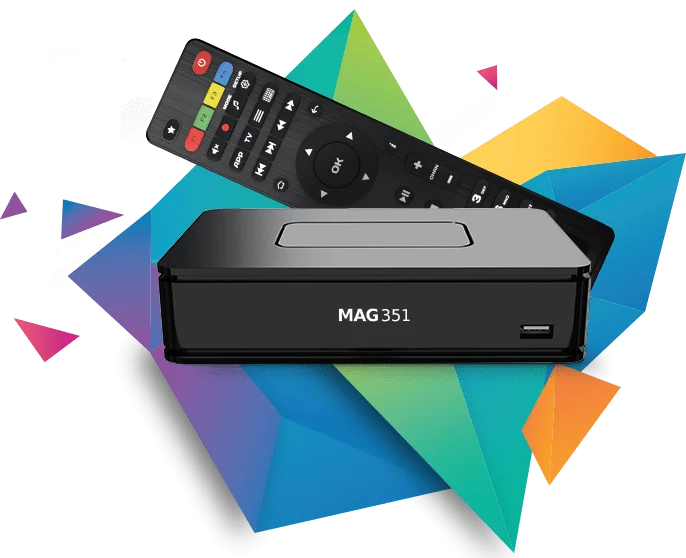
MAG BOX
Step 1:
Locate the MAC Address displayed on your MAG device screen.
Step 2:
Send the MAC Address to our IPTV Danmark team for activation.
Step 3:
After activation, you will receive the portal URL.
Step 4:
Enter the portal URL in your MAG settings and restart the device.
IPTV Danmark is now successfully installed on your MAG Box.
Windows/Mac
Step 1:
Download an IPTV player such as VLC Media Player or IPTV Smarters.
Step 2:
Open the application and enter your IPTV Danmark login details or M3U playlist link.
Step 3:
Save settings and wait for channels to load.
You can now stream IPTV Danmark content on your computer.
Windows/Mac
Step 1:
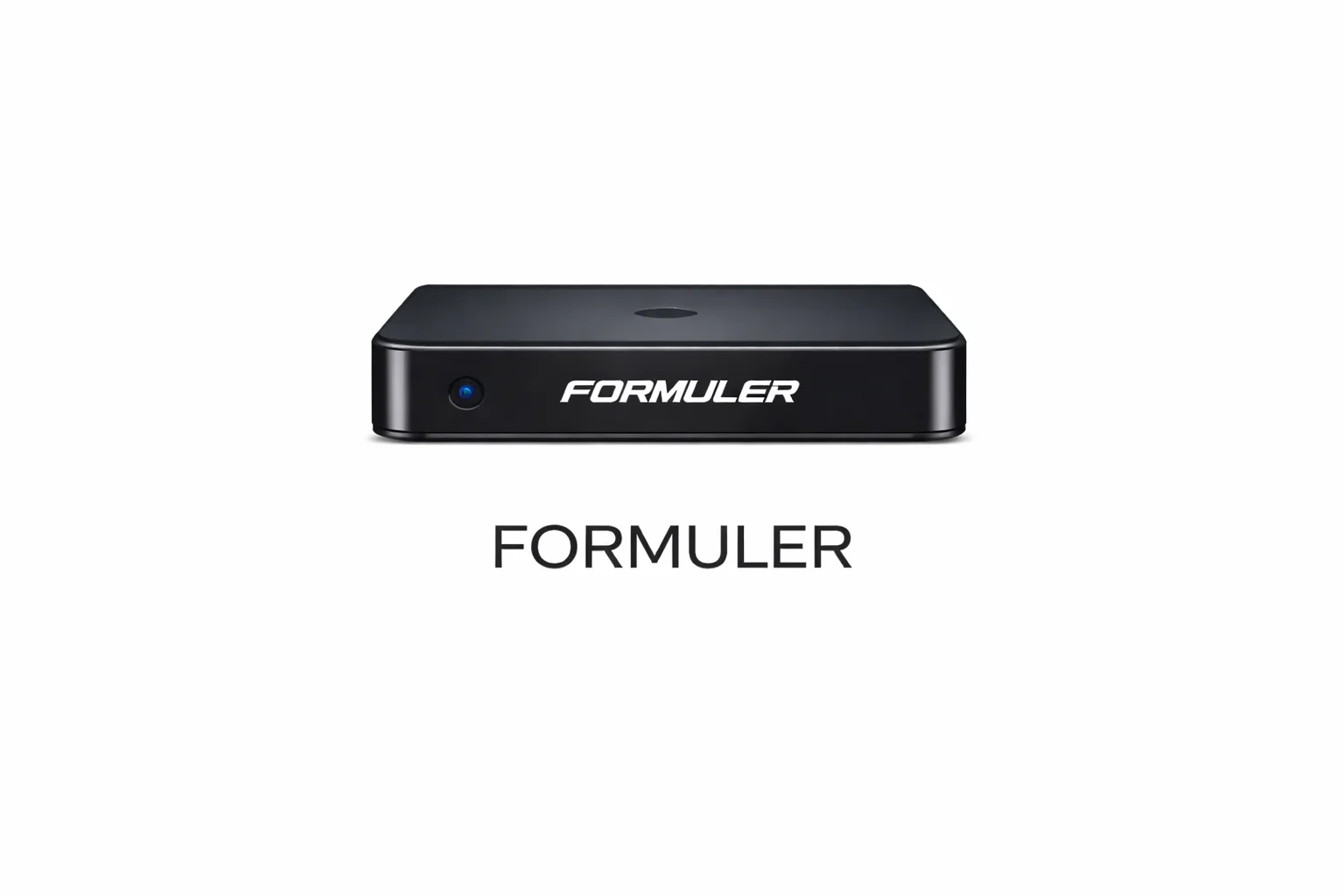
Turn on your Formuler device and connect it to the internet.
Step 2:
Open MYTV Online application.
Step 3:
Enter your portal URL or login details provided after subscription.
Step 4:
Restart the application to load channels.
Premium IPTV Danmark is now active on your Formuler box.
Windows/Mac
Step 1: Connect Your Device
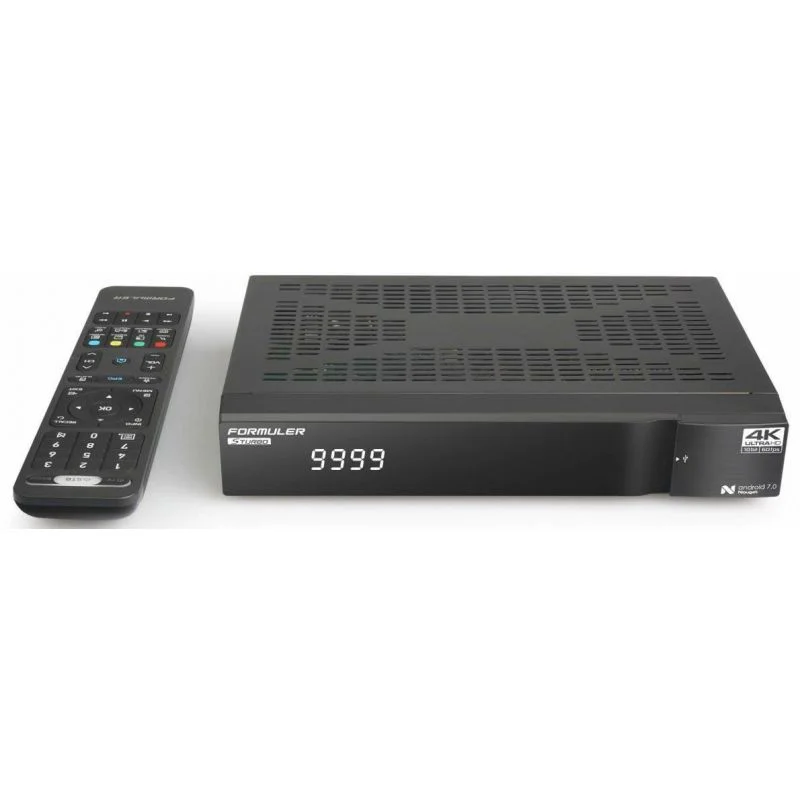
Turn on your Formuler STB-6500 and connect it to the internet using Wi-Fi or Ethernet cable for the best streaming stability.
Step 2: Open MYTV Online App
From the home screen, launch the MYTV Online or MYTV Online 2 application available on your Formuler device.
Step 3: Add IPTV Portal
Select “Add Portal” and enter the Portal URL provided by IPTV Danmark support after your subscription is activated.
Step 4: Enter Login Details
If required, enter your username and password or MAC-based activation details.
Step 5: Save & Load Channels
Save the settings and wait a few seconds while the application synchronizes and loads all IPTV channels and VOD content.
Your IPTV Danmark subscription is now successfully installed and ready to use on Formuler STB-6500.